CertMon
SECURITY & CERTIFICATES
How to trust a self-signed certificate or local CA in Keychain on a Mac
Adding a certificate to Keychain Access does not make your Mac trust it. Trust is a separate setting on the certificate, for your account or for every account on the Mac. Here is how to set it in Terminal and in Keychain Access, which keychain to use, and which apps will then accept the certificate.
Start in Terminal: add the certificate and trust it
For your account only, in the login keychain, trusted for SSL:
security add-trusted-cert -r trustRoot -p ssl \
  -k ~/Library/Keychains/login.keychain-db rootCA.pem
For every account on this Mac, and processes running as root:
sudo security add-trusted-cert -d -r trustRoot -p ssl \
  -k /Library/Keychains/System.keychain rootCA.pem
Check it. The output should end in certificate verification successful.
security verify-cert -c server.crt -p ssl -n myapp.testFrom man security:
-r trustRootis the default and is right for any self-signed certificate, which covers both a root CA and a self-signed leaf.trustAsRootis for a certificate someone else signed, and you rarely want it.-p ssllimits the trust to TLS. Without it, the certificate is trusted for every purpose, code signing and email included.-kpicks the keychain the certificate is stored in.-dwrites the trust setting to the admin domain instead of your own. The file can be PEM or DER.
macOS asks you to confirm with your password or Touch ID. The command waits for that dialog, so it does not work unattended or over SSH; managed Macs push certificates with a configuration profile instead. Do not put sudo in front of the per-user form: it sets trust for the root user, not for you.
To undo: security remove-trusted-cert rootCA.pem (add sudo and -d for the admin form), then security delete-certificate -c "My Local Dev CA" to remove the certificate itself.
In Keychain Access
- Open Keychain Access with Spotlight. Since macOS Sequoia it is no longer in the Utilities folder.
- Choose File → Import Items…, pick the
.pem,.crtor.cerfile, and choose the login keychain. - Open the Certificates tab and double-click the certificate.
- Expand Trust. Set Secure Sockets Layer (SSL) to Always Trust, or set "When using this certificate" to Always Trust for every purpose.
- Close the window and enter your password when asked. The trust setting is saved only then.
A certificate with custom trust shows a small blue plus on its icon, and its details say it is marked as trusted for this account.
Login keychain or System keychain
- Login keychain, per-user trust: affects only your account and needs no administrator rights. Enough for Safari, Chrome and
/usr/bin/curlwhen you run them. Start here. - System keychain, admin trust: applies to every account and to software running as root, such as launch daemons. It needs an administrator password. Use it only when something outside your login session must trust the certificate.
Root CA or self-signed leaf
Trusting a self-signed leaf works for the one name it covers, but it breaks every time the certificate is regenerated, and you trust it again. Trusting a local root CA is a single decision that covers every certificate it signs, so renewing a site's certificate needs no keychain change.
The cost: anyone who gets the CA's private key can make certificates your Mac trusts. Keep the key out of project folders, and give the CA X.509 Name Constraints so it can only sign development names. With OpenSSL, add -addext "nameConstraints=critical,permitted;DNS:test,permitted;DNS:localhost" when creating the CA. In our test on macOS 26, security verify-cert accepted a myapp.test certificate from such a CA and rejected one it signed for example.com.
Either way, the leaf still needs a Subject Alternative Name for each host, and for Safari the serverAuth extended key usage and a lifetime of 825 days or less. The commands to make one are in How to enable trusted HTTPS on localhost in Safari and Chrome on macOS.
Which apps use the keychain
- Yes: Safari, Chrome and other Chromium browsers (Edge, Brave, Arc),
/usr/bin/curl, and Mac apps built on Apple's networking APIs. Chrome can be told to ignore it: check "Use imported local certificates from your operating system" inchrome://certificate-manager. - Firefox: keeps its own certificate store, but since Firefox 120 it also trusts root certificates you have added to macOS by default, including roots trusted only for your account in the login keychain. The setting is "Allow Firefox to automatically trust third-party root certificates you install" under Settings → Privacy & Security → Certificates (
security.enterprise_roots.enabledinabout:config). If it is off, turn it on, or import the CA under View Certificates → Authorities and tick "Trust this CA to identify websites". Firefox reads the Mac's roots when it starts, so quit and reopen it after changing trust. - No: Node.js, Python, Java, Homebrew's curl and Docker containers carry their own lists. See Fix "unable to verify the first certificate" in Node, curl and Python. The iOS Simulator and iPhones need the CA installed separately: untrusted certificates on iOS Simulator and iPhone.
The easier way with CertMon
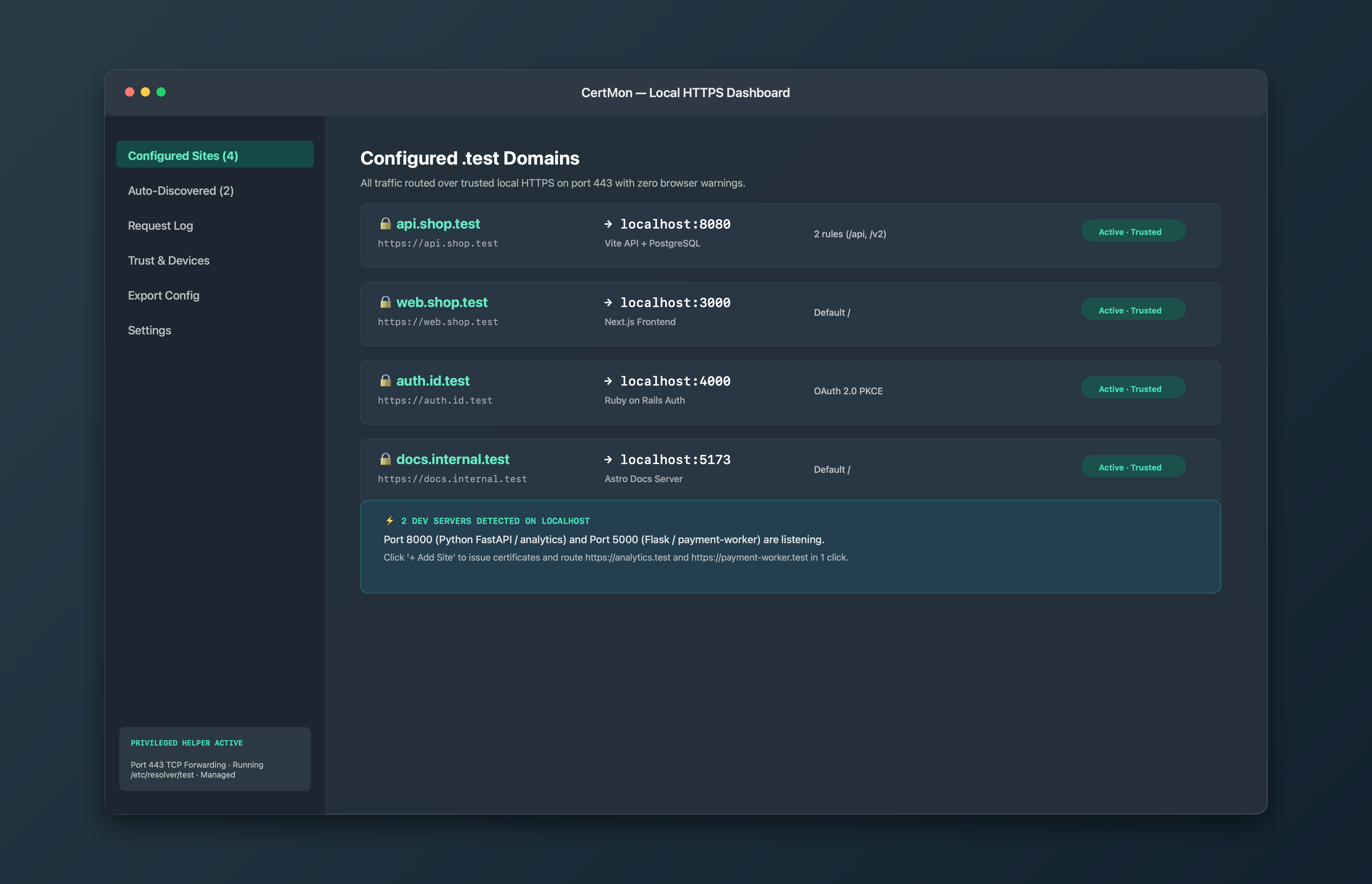
CertMon does all of this on first launch. It creates a root CA whose private key stays in your login keychain, not in a file, limits it with Name Constraints to .test and .localhost names, and trusts it for SSL for your account only, so nothing changes system-wide. You confirm once with your password. The Trust & Devices tab shows the trust status, Repair Trust puts it back if it is lost, and Export CA Certificate (.crt) saves the root for Firefox, Node or a container.