CertMon
MOBILE DEVELOPMENT
How to fix untrusted SSL certificates on iOS Simulator and physical iPhone
Testing a local backend from an iOS app or Mobile Safari? Untrusted certificate errors block App Transport Security (ATS) requests and web views. Here is the fix.
1. For iOS Simulators in Terminal
Xcode provides a CLI tool, simctl, to inject certificates directly into a booted simulator's keychain:
Find your booted simulator:
xcrun simctl list devices bootedAdd the root CA certificate to the booted simulator keychain:
xcrun simctl keychain booted add-root-cert path/to/rootCA.pemTerminate Safari or your app to reload trust:
xcrun simctl terminate booted com.apple.mobilesafari2. For Physical iPhones & iPads
On physical devices, simply transferring a .crt file is not enough—iOS installs it as untrusted by default. You must enable Full Trust:
- AirDrop or email the Root CA certificate or
.mobileconfigprofile to your iPhone. - Open Settings → Profile Downloaded and tap Install. Enter your passcode.
- Open Settings → General → About → Certificate Trust Settings.
- Under Enable full trust for root certificates, switch the toggle for your local CA to On.
Why it happens
Starting in iOS 10.3, Apple security policy strictly isolates manually installed Root CAs. Even after profile installation, iOS intentionally disables TLS trust for custom roots until explicitly authorized in the Certificate Trust Settings menu.
Additionally, App Transport Security (ATS) rejects SHA-1 signatures, RSA keys smaller than 2048 bits, or certificates lacking proper SAN DNS entries.
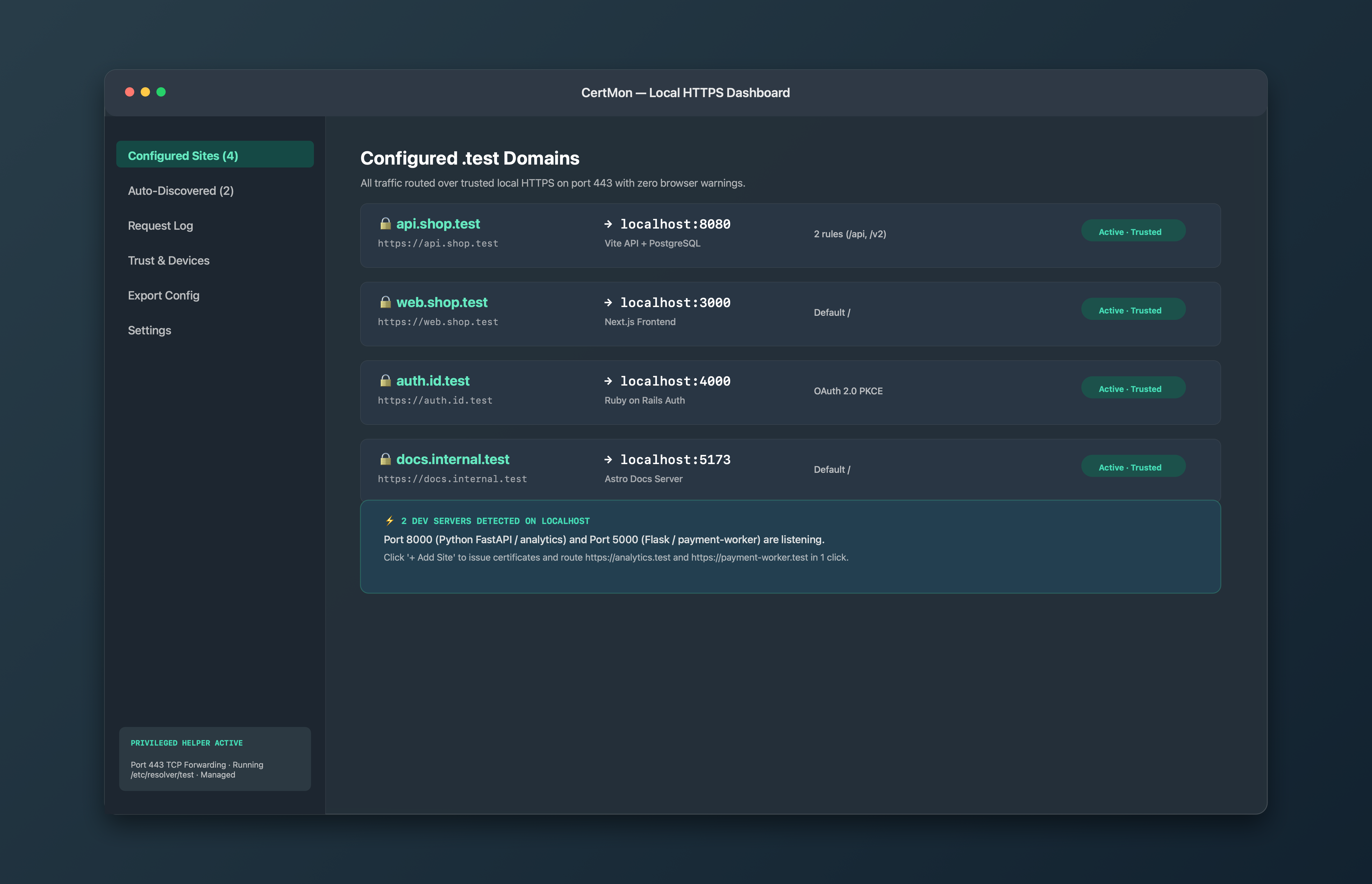
The easier way with CertMon
CertMon includes a dedicated Trust & Devices manager that generates signed Apple .mobileconfig profiles. Click Export iOS Profile to AirDrop to your device with one click, or scan a generated QR code to open your local HTTPS servers over the local Wi-Fi.