CertMon
SECURITY & CERTIFICATES
How to make a Docker container trust your local development CA
Your Mac trusts your local CA, but inside a container curl prints curl: (60) SSL certificate problem: unable to get local issuer certificate, Node fails with UNABLE_TO_VERIFY_LEAF_SIGNATURE and Python with CERTIFICATE_VERIFY_FAILED. A container has its own trust store and never sees your keychain. Copy the root certificate into the image, register it, and connect with a hostname the certificate covers.
Start with the Dockerfile: Debian or Ubuntu
Put the root CA's public certificate (PEM, never the private key) next to the Dockerfile as rootCA.pem. Then:
RUN apt-get update && apt-get install -y --no-install-recommends ca-certificates && rm -rf /var/lib/apt/lists/*
COPY rootCA.pem /usr/local/share/ca-certificates/local-dev-ca.crt
RUN update-ca-certificates
The build log should say 1 added, 0 removed; done. A rehash: warning: skipping ca-certificates.crt line above it is normal. If it says 0 added, the file name does not end in .crt: update-ca-certificates skips anything else, and in our test a copy named .pem was silently ignored. The merged bundle is /etc/ssl/certs/ca-certificates.crt.
Alpine
The base image has a CA bundle but not the update-ca-certificates command, so install the package first:
RUN apk add --no-cache ca-certificates
COPY rootCA.pem /usr/local/share/ca-certificates/local-dev-ca.crt
RUN update-ca-certificates
Alpine's command prints nothing on success. Check with docker run --rm yourimage grep -c BEGIN /etc/ssl/certs/ca-certificates.crt: the count goes up by one.
Node, Python and Java need one more step
After update-ca-certificates, curl, wget and the distro's own packages trust your CA. Runtimes that carry their own list do not. In our tests on Docker Desktop for Mac:
- Node.js still failed with
UNABLE_TO_VERIFY_LEAF_SIGNATURE. It uses the CA list compiled into the binary. AddENV NODE_EXTRA_CA_CERTS=/usr/local/share/ca-certificates/local-dev-ca.crt, or start Node with--use-openssl-cato make it read the system bundle; both worked. - Python requests installed with pip (as in the
pythonimages) still failed, because it uses certifi's bundle. urllib in the same container worked. SetENV REQUESTS_CA_BUNDLE=/etc/ssl/certs/ca-certificates.crt: the system bundle holds the public roots as well as yours, so public sites keep working. Debian's ownpython3-requestspackage already uses the system bundle. - Java uses the JDK's
cacertsfile. Import the CA withkeytoolas shown in the Node, curl and Python guide.
ENV NODE_EXTRA_CA_CERTS=/usr/local/share/ca-certificates/local-dev-ca.crt
ENV REQUESTS_CA_BUNDLE=/etc/ssl/certs/ca-certificates.crt
Without rebuilding: mount the CA at run time
For Node you can skip the image change. Mount the file read-only and point the variable at it:
docker run --rm -v "$HOME/rootCA.pem:/certs/rootCA.pem:ro" -e NODE_EXTRA_CA_CERTS=/certs/rootCA.pem yourimageNODE_EXTRA_CA_CERTS adds to Node's list, so public sites still work. Do not do the same with SSL_CERT_FILE or REQUESTS_CA_BUNDLE pointed at the root alone: those replace the bundle and public sites then fail.
Keep the dev CA out of images you ship. Docker's documentation warns that a trusted MITM-style CA in a production container is a risk if its key leaks. Use a separate build stage or a dev-only Dockerfile.
Connect with a name the certificate covers
Inside a container, localhost is the container. On Docker Desktop, host.docker.internal reaches your Mac; in our test it reached a server bound only to 127.0.0.1 on the Mac. But TLS checks the name, so a certificate made for localhost fails there even with the CA trusted:
- curl:
curl: (60) SSL: no alternative certificate subject name matches target host name 'host.docker.internal' - Node:
ERR_TLS_CERT_ALTNAME_INVALID - Python:
certificate verify failed: Hostname mismatch, certificate is not valid for 'host.docker.internal'.
You have two fixes. Add host.docker.internal as a Subject Alternative Name when you make the certificate, for example mkcert localhost 127.0.0.1 host.docker.internal. Or keep the hostname you already use on the Mac and map it to the host inside the container:
docker run --rm --add-host myapp.test:host-gateway yourimage curl https://myapp.testIn Compose:
services:
  app:
    extra_hosts:
      - "myapp.test:host-gateway"
The second way is better when your CA has Name Constraints, which limit the names it can sign. A root limited to .test cannot vouch for host.docker.internal.
The easier way with CertMon
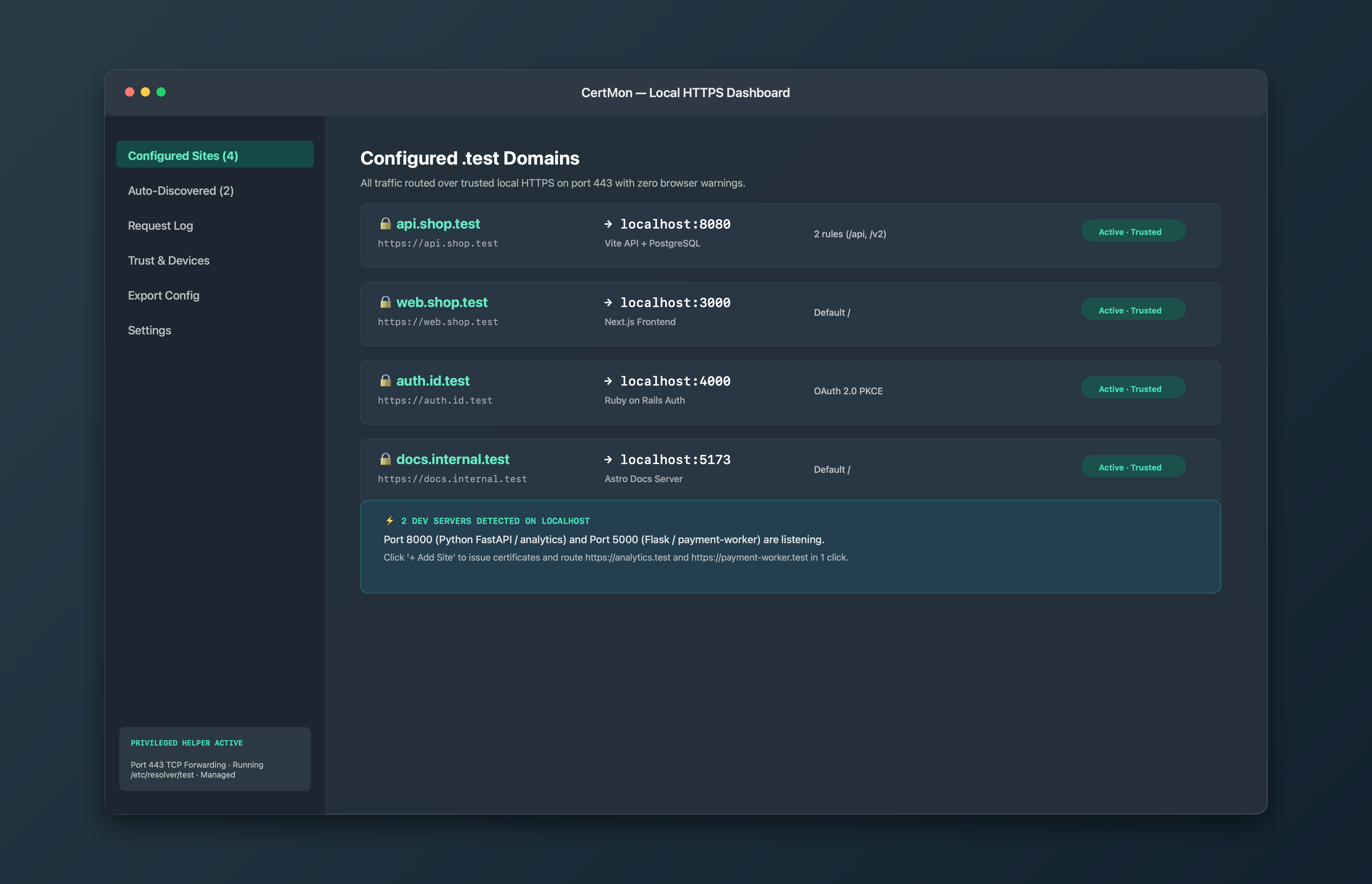
CertMon makes a root CA that is limited with Name Constraints to .test and .localhost names and loopback addresses, which keeps the risk low when you copy it into images. It cannot sign for host.docker.internal, so use the --add-host or extra_hosts mapping with your site's .test name. Export CA Certificate (.crt) in the Trust & Devices tab saves the PEM file to COPY into the image.